Difference between revisions of "Virtual device"
Jump to navigation
Jump to search
m |
|||
| (6 intermediate revisions by 2 users not shown) | |||
| Line 1: | Line 1: | ||
| − | You need open the link with XML description for each | + | <languages/> |
| − | Copy the code of | + | <translate> |
| + | <!--T:1--> | ||
| + | You need open the link with XML description for each widget -> [[Xml]]<br> | ||
| + | Copy the code of the widget you need, for example '''<item addr="384:6" name="Garage" type="gate"/>'''<br> | ||
[[File:Screenshot 001.png|400px]]<br> | [[File:Screenshot 001.png|400px]]<br> | ||
Then open the Structure tab, and click on Edit logic<br> | Then open the Structure tab, and click on Edit logic<br> | ||
| Line 9: | Line 12: | ||
*area name - the room, where you want an object to add<br> | *area name - the room, where you want an object to add<br> | ||
*addr="292:"<br> | *addr="292:"<br> | ||
| − | '''where "292"'''- ID of your module (Metaforsa, DE-MG)<br> | + | '''where "292"'''- ID of your module (Metaforsa, DE-MG, DW-LC10, BW-SW06 etc.)<br> |
'''and ":"''' - inner ID of the object. '''Assigned automatically by the server''' itself after saving and refreshing the XML logic<br> | '''and ":"''' - inner ID of the object. '''Assigned automatically by the server''' itself after saving and refreshing the XML logic<br> | ||
*name - any you like<br> | *name - any you like<br> | ||
| Line 17: | Line 20: | ||
[[File:Screenshot 008.png|700px]]<br> | [[File:Screenshot 008.png|700px]]<br> | ||
After that object ready to work<br> | After that object ready to work<br> | ||
| − | + | </translate> | |
| − | |||
| − | |||
| − | |||
| − | |||
| − | |||
| − | |||
| − | |||
| − | |||
| − | |||
| − | |||
| − | |||
| − | |||
| − | |||
Latest revision as of 15:21, 31 January 2022
You need open the link with XML description for each widget -> Xml
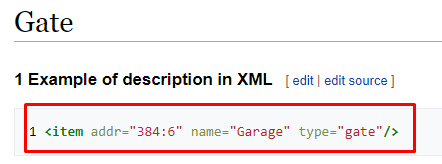
Copy the code of the widget you need, for example <item addr="384:6" name="Garage" type="gate"/>
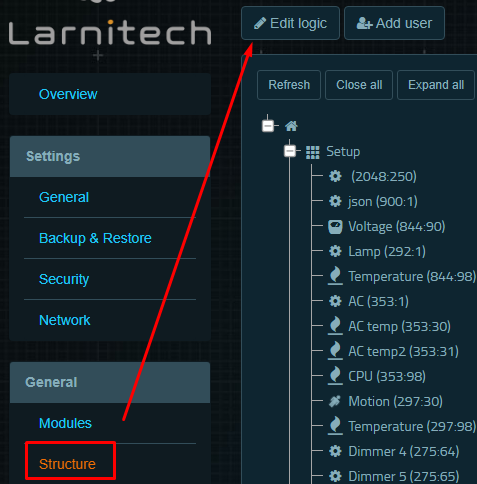
Then open the Structure tab, and click on Edit logic
After that will open pop-up window with XML logic
Add your code with a little configuration below!!!
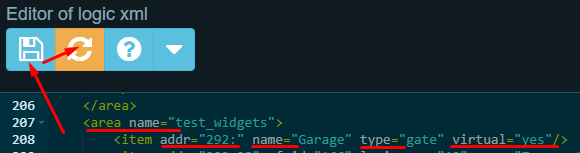
- area name - the room, where you want an object to add
- addr="292:"
where "292"- ID of your module (Metaforsa, DE-MG, DW-LC10, BW-SW06 etc.)
and ":" - inner ID of the object. Assigned automatically by the server itself after saving and refreshing the XML logic
- name - any you like
- type - the icon (widget) of the object. You can change it to another (Jalousie for example)
- virtual="yes" - the object will be able to perform the actions. Without it, object will be only viewed, without performing actions
After refreshing the XML logic, your line will be like in screenshot below. Inner ID succesfully assigned, in our case it was 240

After that object ready to work